
Data Creativity Awards 2026
Finalist Virtual Presentations
Zoom Settings & Essential Guidelines
TABLE OF CONTENTS
I. ZOOM AUDIO & VIDEO SETTINGS
I. ZOOM VIDEO & AUDIO SETTINGS
HOW TO ACCESS THE VIRTUAL AWARDS PRESENTATIONS
You will receive our Daily Advisory email with Zoom Link. This is the ONLY way to access the I-COM Awards Finalists Virtual Presentations.
In order to use the link you need to follow te points below STEP by STEP.
Make sure that you have the latest version of the Zoom App.
Login to your Zoom App with the same Zoom Email ID you had mentioned on the registration form.
Click on your Zoom Link.
LOG-IN TO ZOOM APP AND CHECK FOR UPDATES
Launch the Zoom App on your desktop computer.
Click on Zoom profile icon on the top right.
Select Check for Updates…Make sure that your Zoom App is running the latest version.
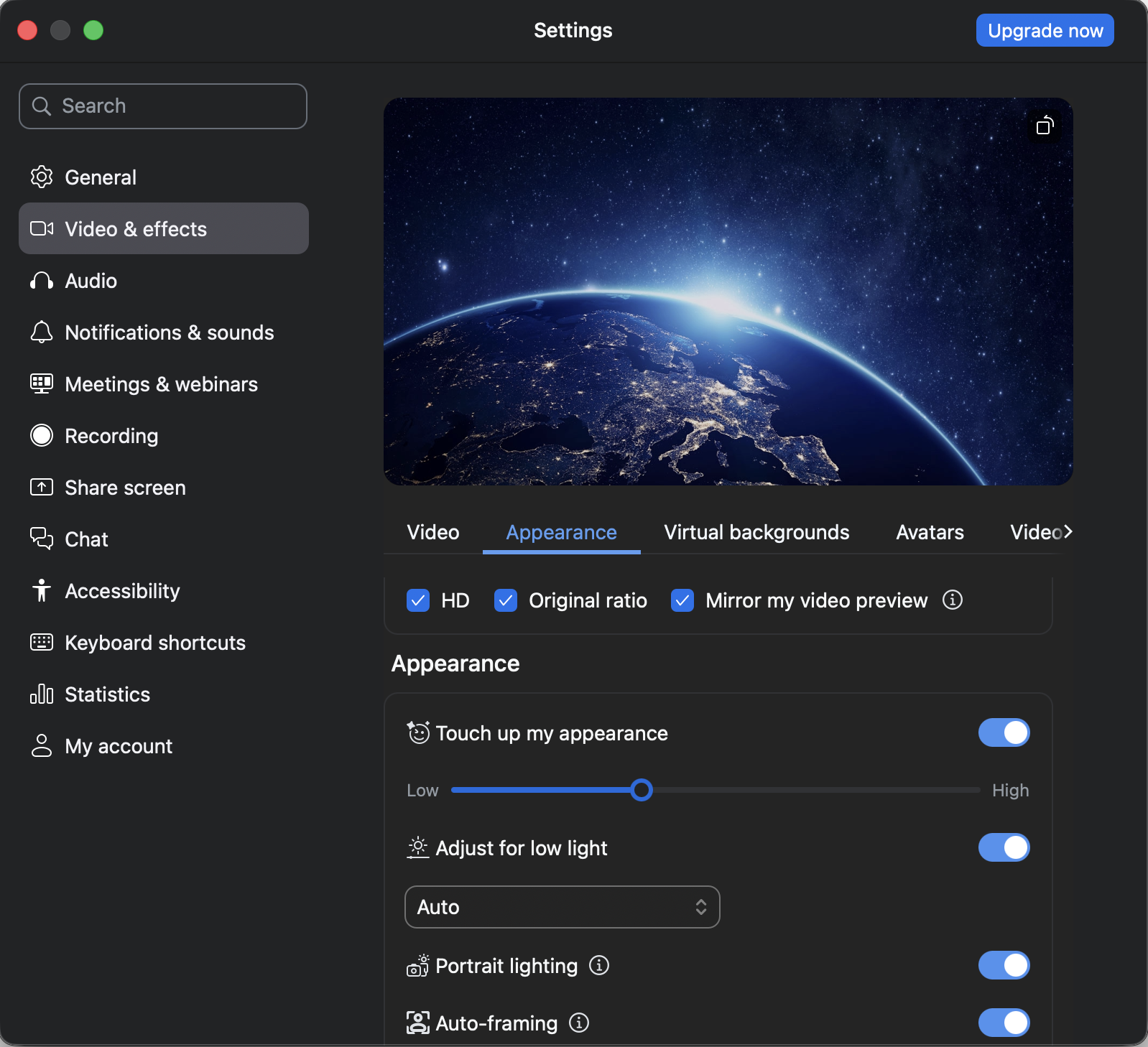
HOW TO SETUP YOUR ZOOM BACKGROUND & VIDEO EFFECTS
Launch the Zoom App on your computer.
Click on Zoom profile icon on the top right. Then, select the settings.
Click on the Video & effects tab from the left sidebar.
CHECK YOUR SOUND
Start New Meeting for yourself and then click on the small up arrow next to Audio option present at the bottom.
Select Test Speaker & Microphone from it.
ADJUST BACKGROUND NOISE
Launch the Zoom App on your PC. Click on Zoom profile icon on the top right. Then, select the settings.
Click on the Audio tab from the left sidebar and select Auto for Suppress background noise.
ADJUST ECHO CANCELLATION
Under Audio Settings, click on Advanced at the bottom.
Select AUTO for Echo Cancellation.
II. ESSENTIAL GUIDELINES
A STABLE INTERNET CONNECTION IS A MUST
Please do a speed test on speedtest.net
Please do not use a VPN to connect.
We highly recommend connecting your computer to the internet via an ethernet cable instead of relying on wifi.
If this isn’t an option, please position yourself as close as possible to the router.
CHECK YOUR EQUIPMENT
Connect to your Zoom App with your desktop or laptop computer. Avoid connecting with your mobile phone.
If possible, use a premium camera and not the one built-in in your computer.
Restart your computer to refresh the system. While the computer loads, use a cloth to wipe your webcam lens.
Turn on the “Do not disturb” settings on your computer. Also, pause syncing to drives like Google Drive or OneDrive.
Close any unnecessary applications including web browsers on your computer.
Don’t forget to mute your cell phone or any connected home devices in the room.
Get mic’d up and make sure your computer audio is working.
You want the best available audio. A headset is recommended, a simple iPhone earbud and mic set could work.
Keep your computer plugged into an outlet.
If you use a big mic, place it outside of the camera range so others can’t see it.
LIGHTING IS KEY
Well lit area. Have plenty of front light. For example, move any lamps closer to your location.
Controlled natural lighting. Have the ability to close shades/draw curtains to block out strong rays from the sun that will move throughout your live stream.
Face your brightest source of light. You’ll look better on the call.
Do not sit with your back to a window
to avoid the contre-jour effect.
HAVE THE RIGHT BACKGROUND
Avoid TV/Screens in the background, all of which will catch a glare.
Do your best to avoid an all-white background.
Please use your personalised virtual background that was sent to you.
When using a virtual Background:
Use a green screen or sit with your back to an even & flat wall/surface.
Sit maximum 2 feet (60cm) away from the green screen/wall.
Have plenty of front lighting.
PUT YOUR BEST FACE FORWARD
Place your camera at the eye level by raising your device.
When speaking, look at the camera.
Do not sit too close to the camera.
Sit up & do not crouch or hunch over the camera.
THINK ABOUT WHAT YOU WEAR
Dress code: business attire.
Choose cool colors, pastel colors, black and muted earth tones.
Avoid white, small or loud prints.
Avoid wearing the same color as your background.
Be comfortable.
ZOOM TROUBLESHOOTING
If you experience any technical issues before or during the virtual event, please visit the Zoom Support page using the link below. You can find step-by-step troubleshooting guides for audio, video, connection, microphone, camera, screen sharing, and general meeting issues.
We recommend reviewing these resources in advance to ensure the best possible experience during the session.